
The 3D 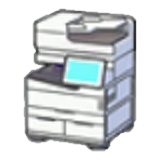 Printer is one of the most useful tools in Pokémon Pokopia, and it's easy to overlook if you're focused on building and exploring. Tucked inside every Pokémon Center, this machine lets you duplicate almost any item in the game, from decorative furniture to rare Berry Trees, as long as you have a photo and the right materials. Once you understand how it works, you'll wonder how you ever managed without it.
How Do You Unlock the 3D ?
The 3D Printer becomes available automatically once you finish rebuilding your first Pokémon Center. You don't need to craft it, purchase it, or complete any special side quest. From that point forward, every Pokémon Center in the game contains one, and you can use it as many times as you like with no daily limit.
Printer unlocks immediately after, giving you access to item duplication right from the start of your island journey.How Does the 3D Work?
The process runs in two stages: taking a Reference Photo of the item you want, then bringing that photo to the 3D Printer to produce copies. Here's the full step-by-step breakdown.
Step 1: Take a Reference Photo
- Open your Camera by pressing
-or through the main menu. - By default, the camera starts in Landscape mode. Press
Yto switch to Object mode, which lets you focus on individual items. - Aim at the item you want to copy. When it's properly framed, the item's name appears above it on screen.
- Press
Ato capture the Reference Photo.
printer display a Green Tick, so you can easily identify which ones are still available. Delete old photos when you need space.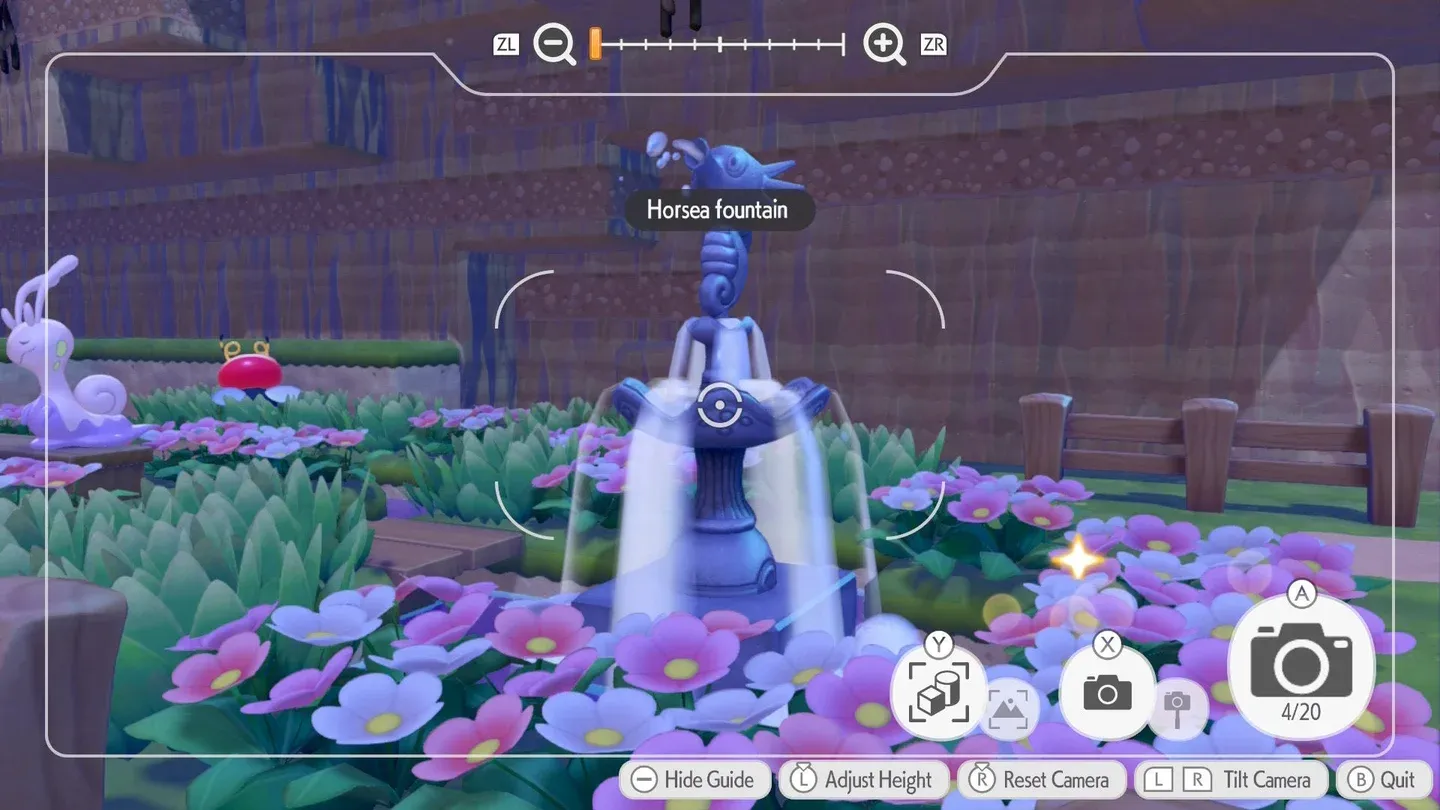
Step 2: Use the 3D
- Head to any Pokémon Center and interact with the 3D Printer.
- Select the Reference Photo you want to use from your album.
- Review the Pokémetal cost for the copy.
- Set the quantity you want, confirm, and pay. Your duplicated items arrive shortly after.
What Materials Does the 3D Require?
The printer runs on Pokémetal and Rare Pokémetal, with the cost scaling based on the item's size and complexity. Simpler, single-block furniture pieces start at just 2 Pokémetal, while larger or more feature-rich objects demand significantly more. Certain premium items, like the 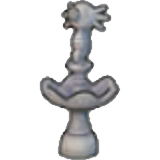 Horsea Fountain or Berry Trees, require Rare Pokémetal instead.
| Item Type | Required Material | Notes |
|---|---|---|
| Standard furniture (1 block) | Pokémetal | Minimum cost: 2 Pokémetal |
| Larger furniture / decorations | Pokémetal (higher amount) | Scales with size |
| Berry Trees | Rare Pokémetal | Worth the cost for cooking |
| Lost Relics | Rare Pokémetal | Useful for habitat building |
| Horsea Fountain | Rare Pokémetal | Unique pattern item |
What Are the Best Things to Copy?
Not every item is worth spending Pokémetal on, so it pays to be selective. Here are the highest-value targets for your Reference Photos.
Berry Trees From Developer's Island
Berry Trees are arguably the single best use of the 3D Printer. Visiting Developer's Island and photographing the Berry Trees there lets you duplicate every berry variety you need, even ones that are difficult to obtain without trading with other players. These trees feed directly into Mosslax's food buffs and unlock the full range of cooking recipes, making them a priority investment despite the Rare Pokémetal cost.
Habitat Furniture
Building specific habitats often requires items with recipes that are hard to come by. The 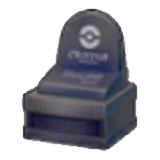 Gravestone, for example, is needed for certain rare habitats but isn't easy to craft from scratch. Taking a photo of one and printing copies bypasses the recipe requirement entirely, letting you focus on habitat design rather than resource hunting.
Furniture With Unique Patterns
Some decorative pieces feature distinct visual styles that can't be replicated through standard crafting. If you encounter a pattern or design you want more of, photographing it and printing copies is far more efficient than searching for the original recipe or materials.
Tips for Getting the Most Out of the 3D
- Photograph items on other players' islands. When you visit a Cloud Island or a friend's game, bring your camera. Any item you photograph there can be printed back on your own island.
- Keep your album organized. With only 20 slots, delete used Reference Photos (marked with a Green Tick) regularly to make room for new ones.
- Prioritize Rare Pokémetal for high-value items. Don't waste it on furniture you can craft normally. Save it for Berry Trees, Lost Relics, and unique decorations.
- Check habitat requirements before printing. Cross-reference what your habitats need before spending materials, so every print serves a purpose.
Ready to Keep Building?
The 3D Printer transforms how you approach resource management in Pokémon Pokopia. Instead of grinding for rare crafting recipes or relying on trading, a single well-timed photograph opens up duplication for virtually any item in the game. Focus on Berry Trees first, keep your Rare Pokémetal stocked, and photograph everything interesting you find on other players' islands. For more strategies and guides across all your favorite games, browse more guides on Pokopia Wiki to keep your gameplay sharp.