
Setting up Pokemon Pokopia correctly before you start building habitats and befriending Pokemon makes a noticeable difference in how smooth and enjoyable the experience feels. The game packs a surprising number of toggles across three categories: Game, Camera, and Sound. Most players skip past these menus and miss a few options that genuinely speed up daily play. This guide breaks down every setting, explains what it actually does, and tells you exactly what to change first.
How Do You Access the Settings in Pokemon Pokopia?
Press the Plus (+) Button while playing to open the Pokedex Menu, then select the Settings option. That single menu houses all three categories: Game, Camera, and Sound. You can return here at any time during a session to adjust on the fly, which is especially useful when switching between exploration and building.
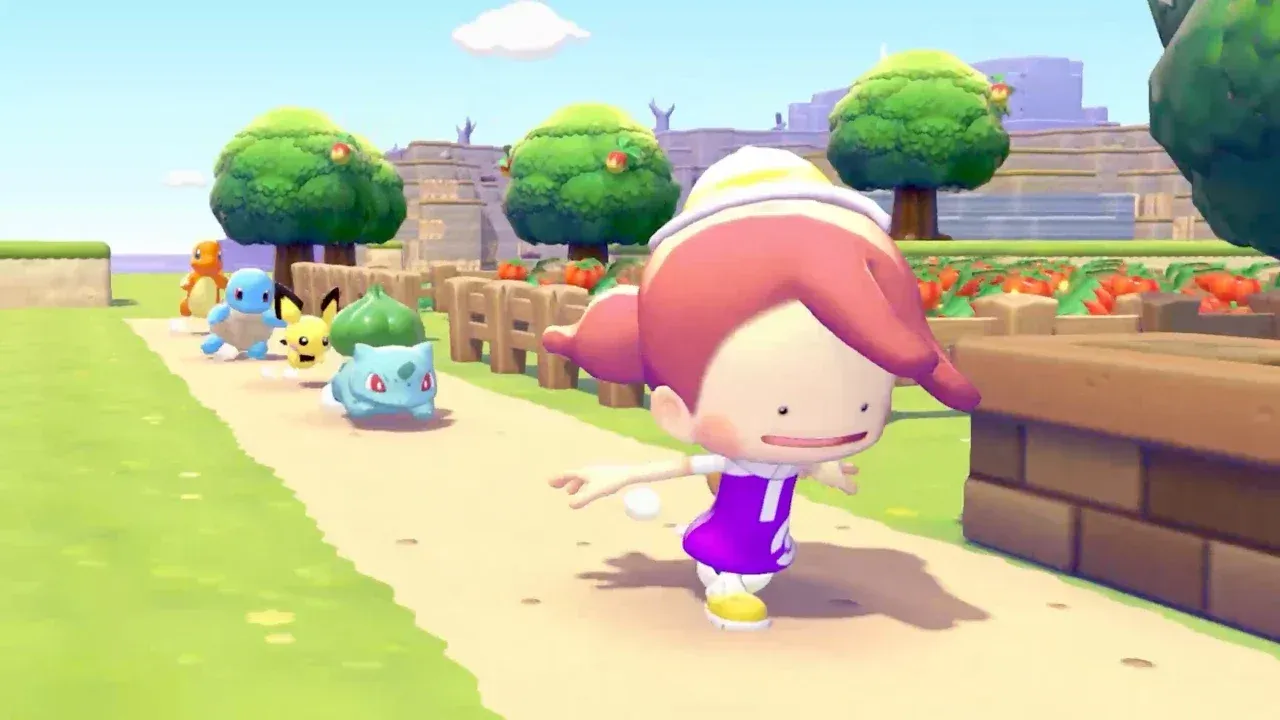
Game Settings
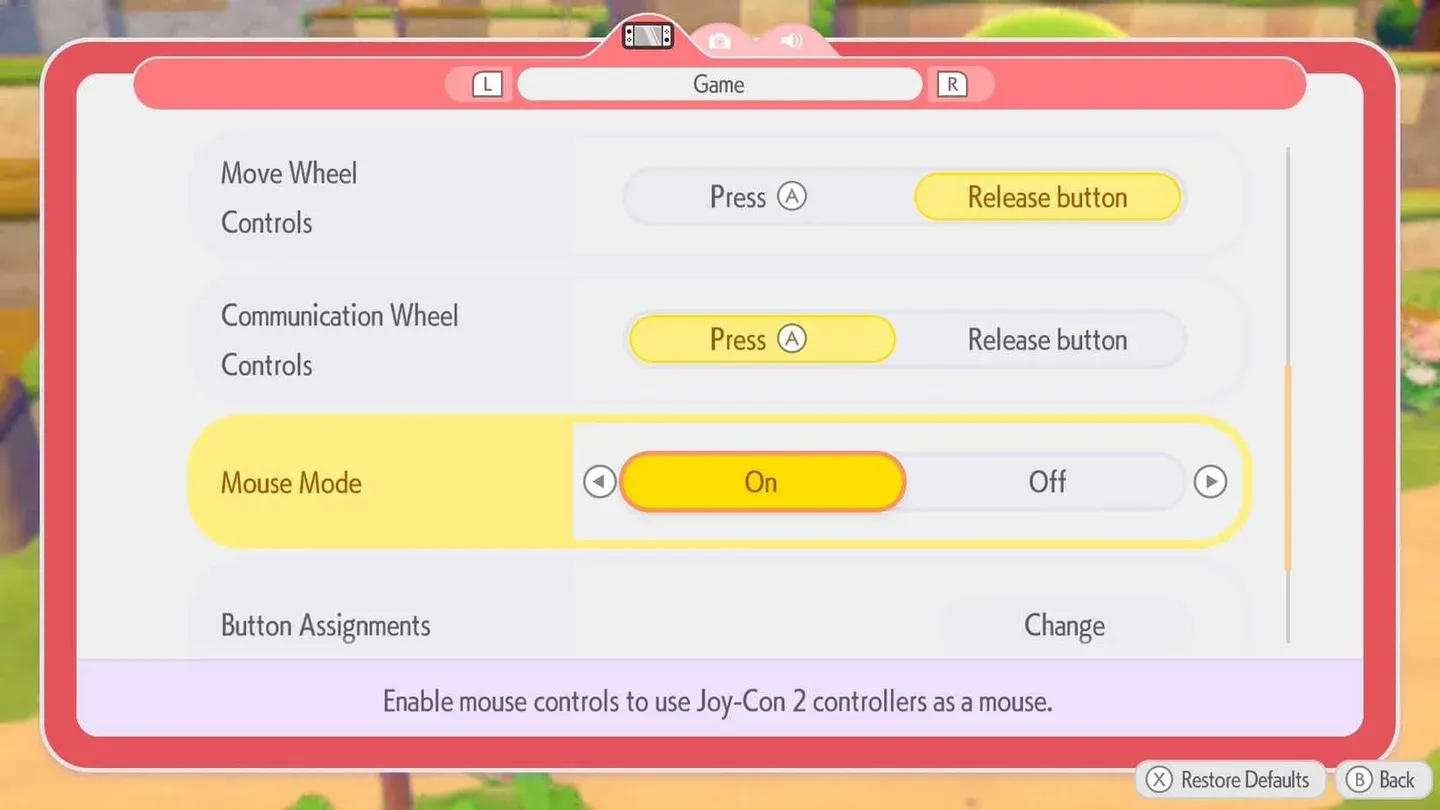
The Game category holds the most impactful options. A handful of these have clear recommended values, while others come down to personal preference.
| Game Setting | Recommended Option | Reason |
|---|---|---|
| Text Speed | Fast | Fills text box instantly, skips manual A presses |
| Controller Rumble | User Preference | Personal comfort choice |
| Run/Jump Controls | User Preference | Default is B to run, R to jump; swap if preferred |
| Move Wheel Controls | Release Button | Faster move switching |
| Communication Wheel | Press A | Prevents accidental messages |
| Mouse Mode | On | Precise block placement during building |
| Button Assignments | User Preference | Customize to your controller comfort |
Camera Settings
Camera settings in Pokopia are largely personal preference, but one option stands out as a clear recommendation.
Should Camera Auto-Adjust Be On or Off?
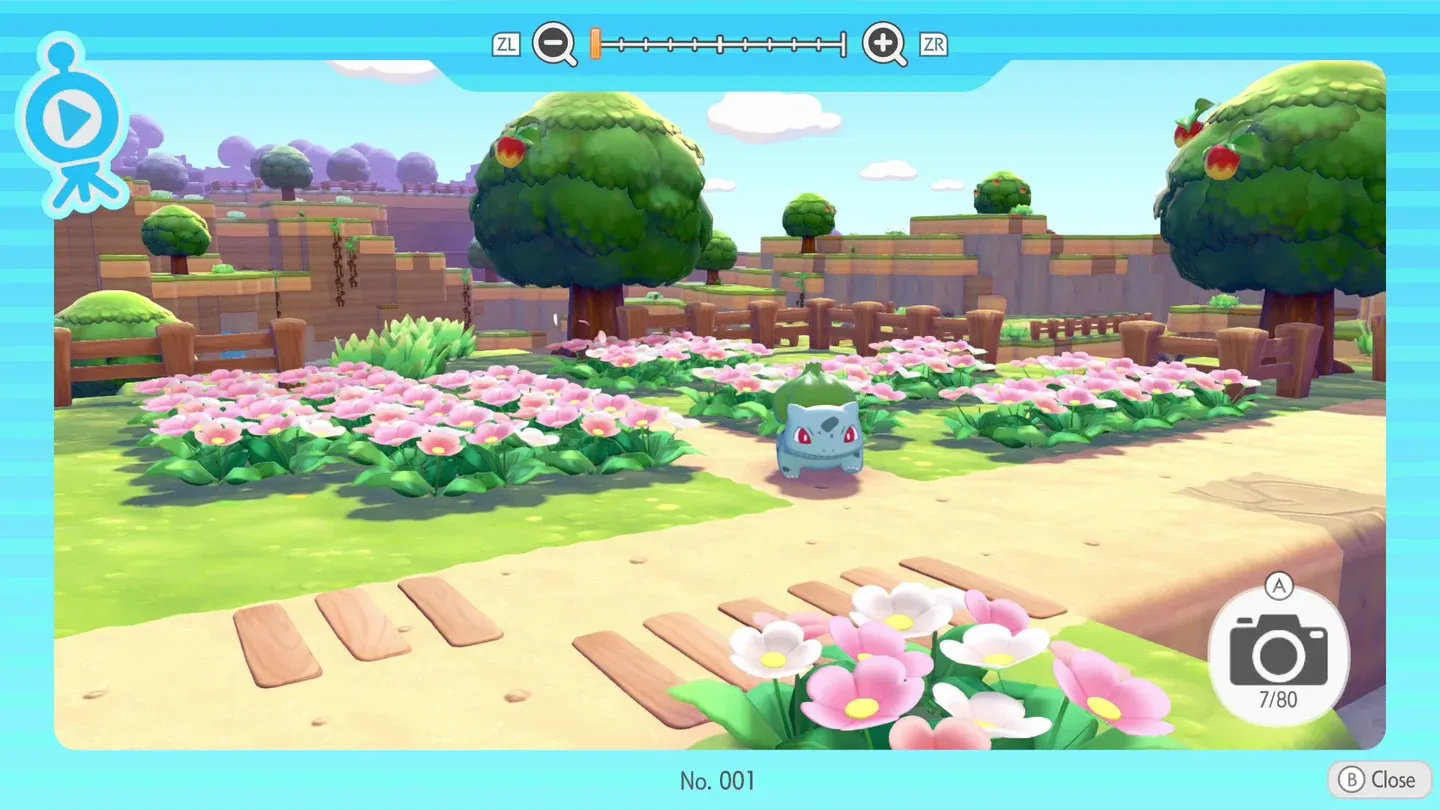
Turn Camera Auto-Adjust to On. When this is active, the camera automatically repositions to keep a Pokemon centered in frame, which is a meaningful advantage when trying to photograph Pokemon for the Album Collection. Hunting down a specific Pokemon for a photo is already time-consuming; having the camera drift away from your subject mid-shot makes it worse.
| Camera Setting | Recommended Option | Reason |
|---|---|---|
| Camera: Vertical | User Preference | Invert or standard based on comfort |
| Camera: Horizontal | User Preference | Invert or standard based on comfort |
| Camera Speed | User Preference | Scale 1-5 to match your reaction speed |
| Camera Distance | User Preference | Controls Ditto's distance in selfie mode |
| Camera Auto-Adjust | On | Keeps Pokemon centered for Album photos |
Sound Settings
All three sound options, Background Music, Sound Effects, and Pokemon Cries, run on a scale from 0 to 10 and are entirely down to personal preference. There is no mechanical advantage to any specific volume level. Set these to whatever feels comfortable for your environment, whether you are playing docked in a living room or handheld with headphones.
| Sound Setting | Range | Recommended |
|---|---|---|
| Background Music | 0-10 | User Preference |
| Sound Effects | 0-10 | User Preference |
| Pokemon Cries | 0-10 | User Preference |
Can You Adjust Graphics Settings in Pokemon Pokopia?
No. Pokemon Pokopia does not include a manual graphics settings menu. The game runs at its best available output by default. On the Nintendo Switch 2, the built-in display runs at 1080p and supports framerates up to 120 fps, meaning the game is already outputting at its highest quality without any adjustments needed from the player.
For the best visual experience, playing in docked mode is recommended, as this takes full advantage of the 1080p and 120 fps capabilities on a larger screen.